Workflow
Character Consistency: Keeping the Same Person Across Images and Video
A four-step recipe for keeping the same person, outfit, and location locked across a series of stills and a short clip — without the drift.
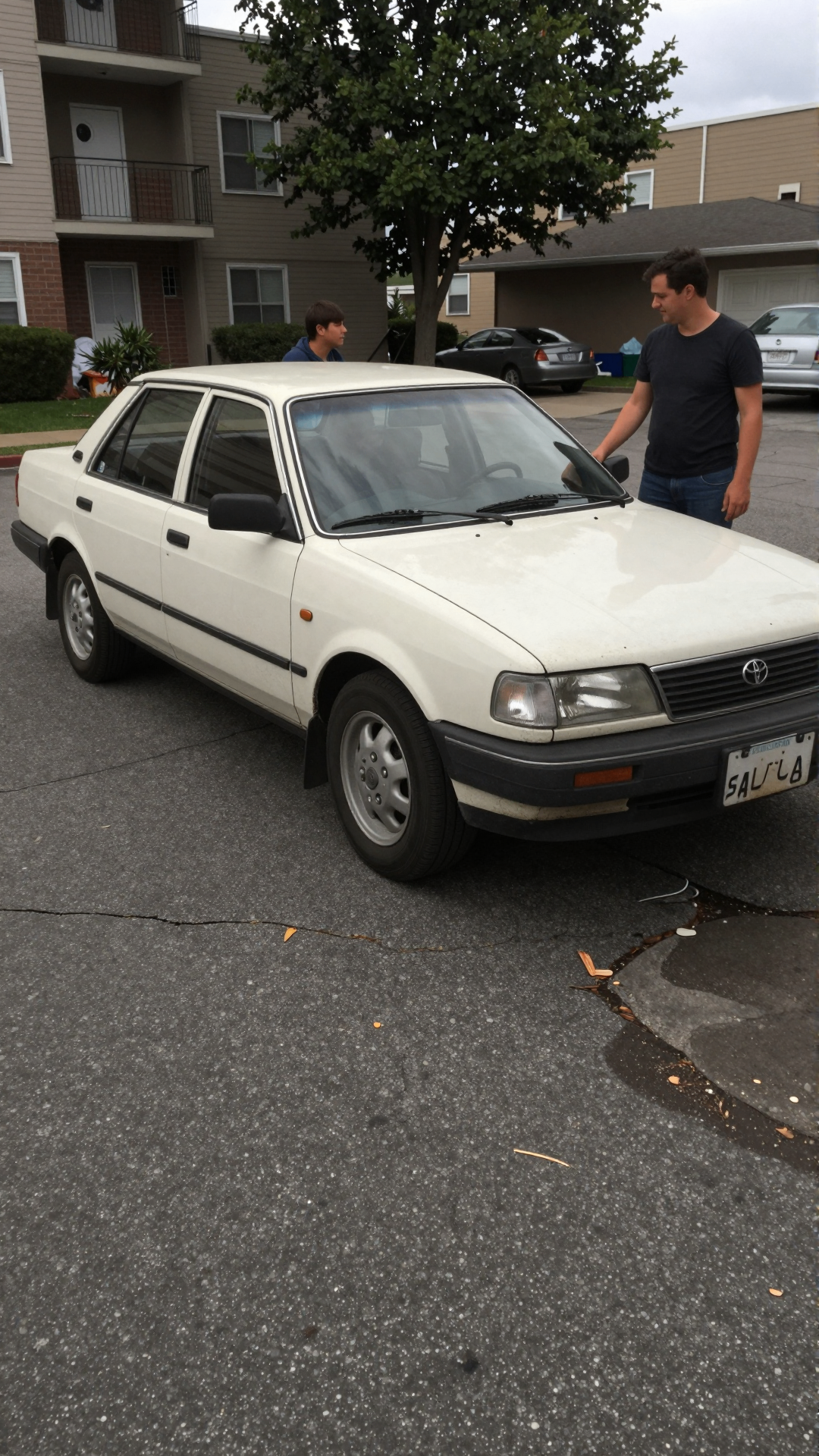
"Same person across ten frames" is the request that breaks most AI image tools. The model nails one image and then drifts — the jawline softens, the hair color shifts a stop, the jacket changes seams. For anything that has to feel like a real series — a campaign, a vlog, a product story — drift is the failure mode you have to engineer around.
Here's the recipe we use internally for keeping a person, an outfit, and a location locked across stills and a short clip.
Step 1 — Build a reference set, not a reference image
One photo isn't enough. The model needs to triangulate. Upload three to five images of the subject:
- One straight-on portrait (face structure).
- One three-quarter (volume, hair line, ears).
- One full-body in the outfit you want carried forward.
- Optional: one in the lighting condition you'll be shooting in.
Avoid heavy filters or studio retouching in the references — the model will treat the smoothing as a feature and replicate it everywhere.
Step 2 — Anchor what's invariant, leave the rest free
In your prompt, separate the things that must stay constant from the things you want to vary. A simple pattern:
[same person as reference], [same outfit], [new location], [new action], [new time of day]
Don't re-describe the face. Naming features ("blue eyes, freckles") is where things start to drift, because the words compete with the reference. Let the references describe the face; use words for what they can't.
Step 3 — Watch the killers
Three things reliably break consistency. Avoid them unless you want them:
- Style words. "Cinematic", "editorial", "studio" pull the model toward a stylized average and away from your specific person.
- Big lighting jumps. Going from harsh midday flash to candle-lit interiors in one batch will warp skin tone. Stagger the light changes across a few frames.
- Conflicting attributes. If your reference shows long hair and your prompt says "short bob", the prompt wins — and so does the drift.
Step 4 — From stills to video
For a short clip, generate the still you want first, then use that still as the seed for the video. The motion model has a much easier time animating a frame it already understands than synthesizing one from scratch. Keep clips short (4–6 seconds) and let the cuts do the narrative work.
Drift is not a model problem — it's a workflow problem. Give the model something to triangulate against and it stops guessing.
A 4-shot story you can run today
- Wide selfie on a balcony at dusk.
- Tight portrait at the kitchen counter, same outfit, harsh flash.
- Mid-shot walking past a tram stop, slight motion blur.
- 5-second clip animating shot 3 — same frame, just breathing.
For the prompting language behind each shot, see Prompting Real Life. If your subject lives mostly on a smartphone screen, pair this with How to Generate Realistic AI Photos and Videos. And for an entirely different use of consistency — recurring surveillance subjects — read Synthetic CCTV Footage.
When you're ready, open the workspace and try the 4-shot story above with your own references.
Stop reading. Start generating real-looking footage.
Open Globany, pick a mode, and have your first realistic frame in under a minute.